


Oct 26, 2026
How to Connect Your AI Assistant to Shopkeeper
Shopkeeper connects to Claude and ChatGPT through MCP (Model Context Protocol), the standard way for an AI app to read data from another app. Once connected, you can ask your assistant about your sales, profit, orders, inventory and ad spend in plain English, and it answers from your Shopkeeper numbers.
Your assistant can only read. It can't change anything in your Shopkeeper or Amazon account.
What you need
-
A Shopkeeper account with your Amazon store connected. If you don't have one yet, you can create a free account while you connect.
-
A Claude account on claude.ai or a ChatGPT account on chatgpt.com.
-
The Shopkeeper MCP address:
https://shopkeeper.com/mcp
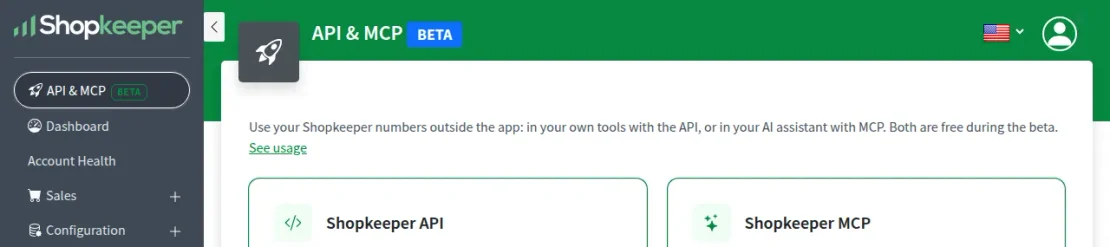
You'll also find the address and these steps in Shopkeeper, under API & MCP in the menu.
Claude
-
On claude.ai, open Customize, then Connectors.
-
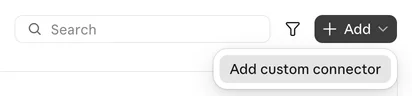
Click Add, then Add custom connector.
-
Enter Shopkeeper as the name, paste
https://shopkeeper.com/mcpand click Continue.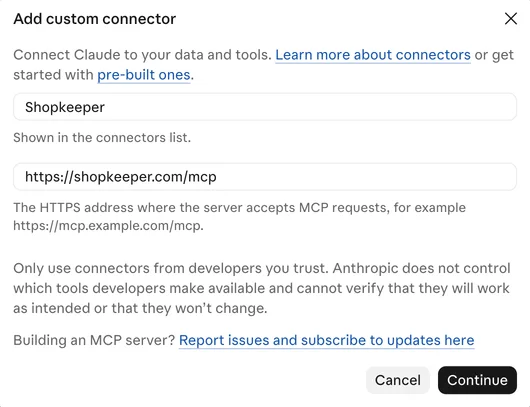
-
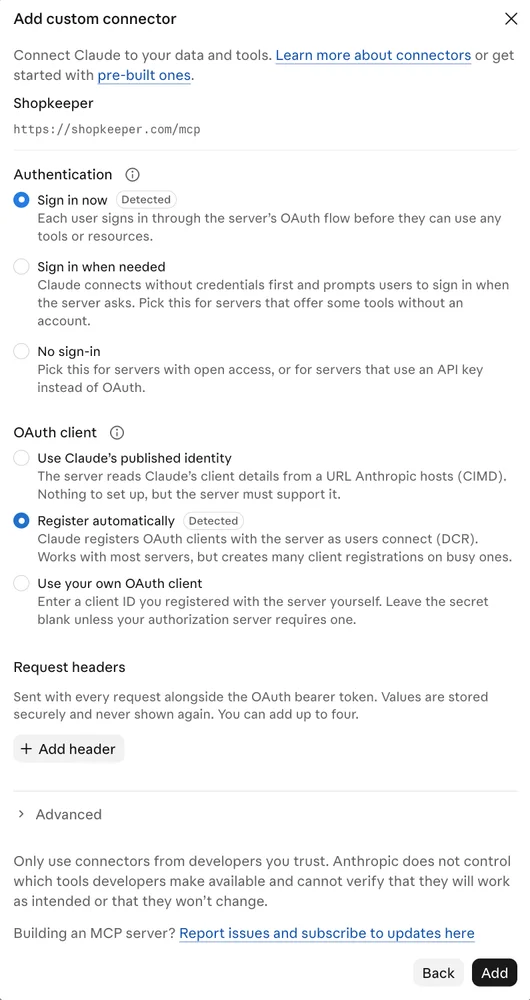
Leave the detected settings as they are (Sign in now and Register automatically) and click Add.
-
Sign in to Shopkeeper when Claude asks (see Sign in and allow below).
Free Claude accounts can add one custom connector. On a Team or Enterprise plan, an owner adds it for everyone under Organization settings, then Connectors. Once it's added on claude.ai, you can use it in the Claude desktop and mobile apps too.
ChatGPT
-
On chatgpt.com, go to Plugins.
-
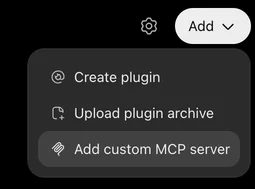
Click Add (top right), then Add custom MCP server.
-
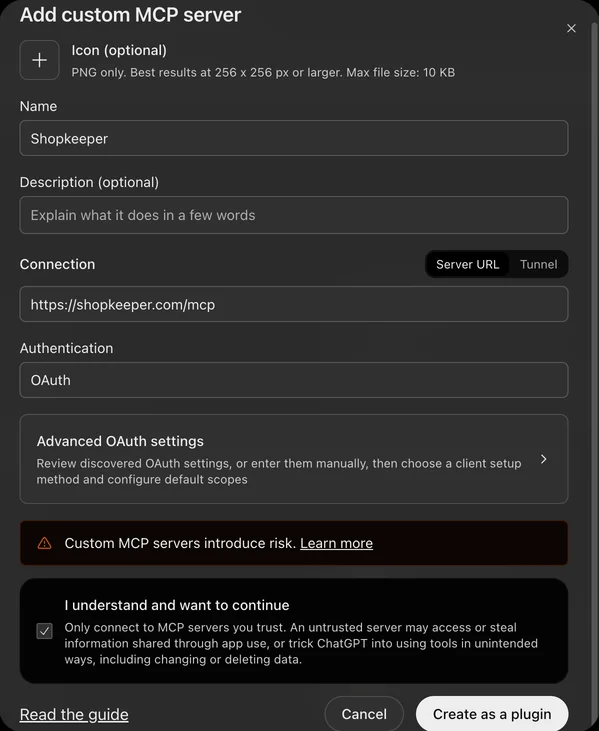
Enter Shopkeeper as the name, keep Server URL selected and paste
https://shopkeeper.com/mcp. Authentication should show OAuth. -
Tick I understand and want to continue, then click Create as a plugin.
-
Sign in to Shopkeeper when ChatGPT asks.
Custom MCP servers aren't available on every ChatGPT plan. If you don't see the option, check your plan or ask your workspace admin.
Sign in and allow
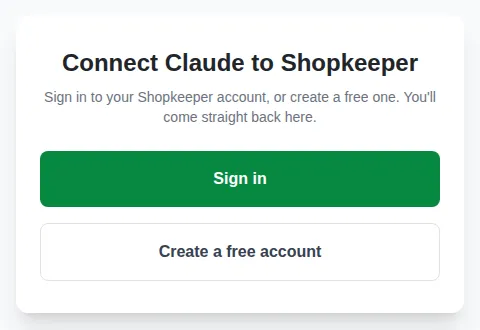
The first time you connect, Claude or ChatGPT opens a Shopkeeper page. Sign in, or create a free account if you don't have one yet.
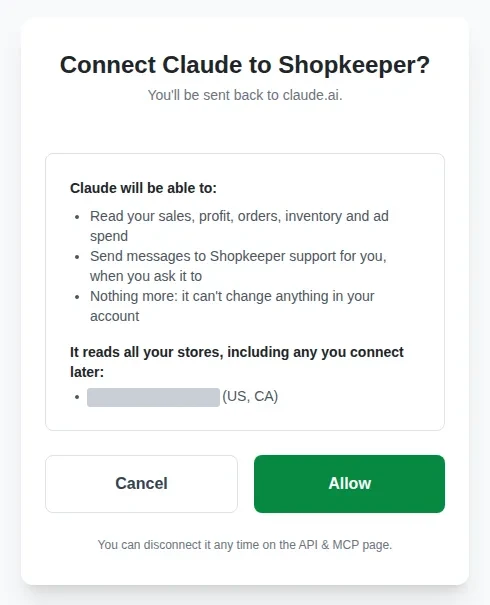
Shopkeeper then shows what the app will be able to do. It reads all your stores, including any you connect later.
Click Allow and you're sent back to Claude or ChatGPT.
Ask your first question
Ask the way you'd ask a colleague. A few to try:
-
"How do sales and profit this month compare with last month?"
-
"What was my net margin by marketplace last month?"
-
"Which SKUs lost money in September, and why?"
-
"How many days of stock are left on my top 10 sellers?"
-
"Which Sponsored Products campaigns had an ACoS over 40% last week?"
-
"Show me the profit breakdown for order 113-1234567-1234567."
Dates are days in your account's time zone, and money is in your account's currency unless you ask for another.
What your assistant can read
| What | What it gives your assistant |
|---|---|
| Sales summary | Units, revenue, refunds, costs, ad spend, profit and margin, by day, week or month if you like |
| Profit and loss | Your P&L section by section, the same as the P&L page |
| Sales by product | The same figures per SKU, best sellers first |
| Orders and order details | Orders with their profit, and one order's full breakdown |
| Inventory | Stock, inbound units, sales per day, days of stock left and stock value |
| Advertising | Campaigns with spend, attributed sales and ACoS |
| Product catalog | Your products with their titles, ASINs, images and prices |
| Product costs | The costs you entered per SKU and marketplace |
| Manual expenses | The expenses you entered in Shopkeeper |
| Stores and settings | Your connected stores, currency, time zones and VAT settings |
Get help from support without leaving the chat
If a number looks wrong, or you'd like Shopkeeper to do something new, ask your assistant to tell Shopkeeper support. It shows you the message and sends it only after you say OK. Support replies in the support chat inside the Shopkeeper app.
Connect another Amazon account from the chat
Ask your assistant to connect another Amazon seller account. It gives you a link, good for an hour, to Shopkeeper's Amazon connection page. Other stores, such as Amazon Ads, Shopify, Walmart and eBay, are added in the Shopkeeper app.
See or disconnect your AI apps
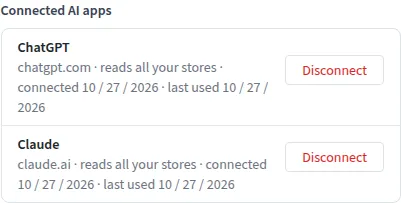
In Shopkeeper, open API & MCP. Under Connected AI apps you'll see each app and when it was last used. Click Disconnect to take its access away. If you connect it again later, it asks you to sign in and allow it again.
The See usage link on the same page shows how many requests your AI apps and API keys made each month.
Questions
My assistant says no store is connected. It gives you a link to connect your Amazon account. Once you've connected it, tell your assistant and it checks how far the first import has got.
Can my assistant change anything in my account? No. It can only read, and send a message to Shopkeeper support when you ask it to.
Does it cost anything? API & MCP are free during the beta.
Something doesn't work. Write to support@shopkeeper.com or use the support chat in the Shopkeeper app.


