

 English


Jan 13, 2026
How to Set Costs on your Shopkeeper Sales Page
As an Amazon seller, knowing your true profitability is paramount to your long-term growth and success, and this means taking into account every cost!
There’s no point in looking at pretty orange sales graphs in Seller Central when you have no idea how much actual profit your business is taking home at the end of each month.
So on your Shopkeeper Sales page, we’ll show you exactly which ASINs you haven’t entered costs for, with a red warning icon.
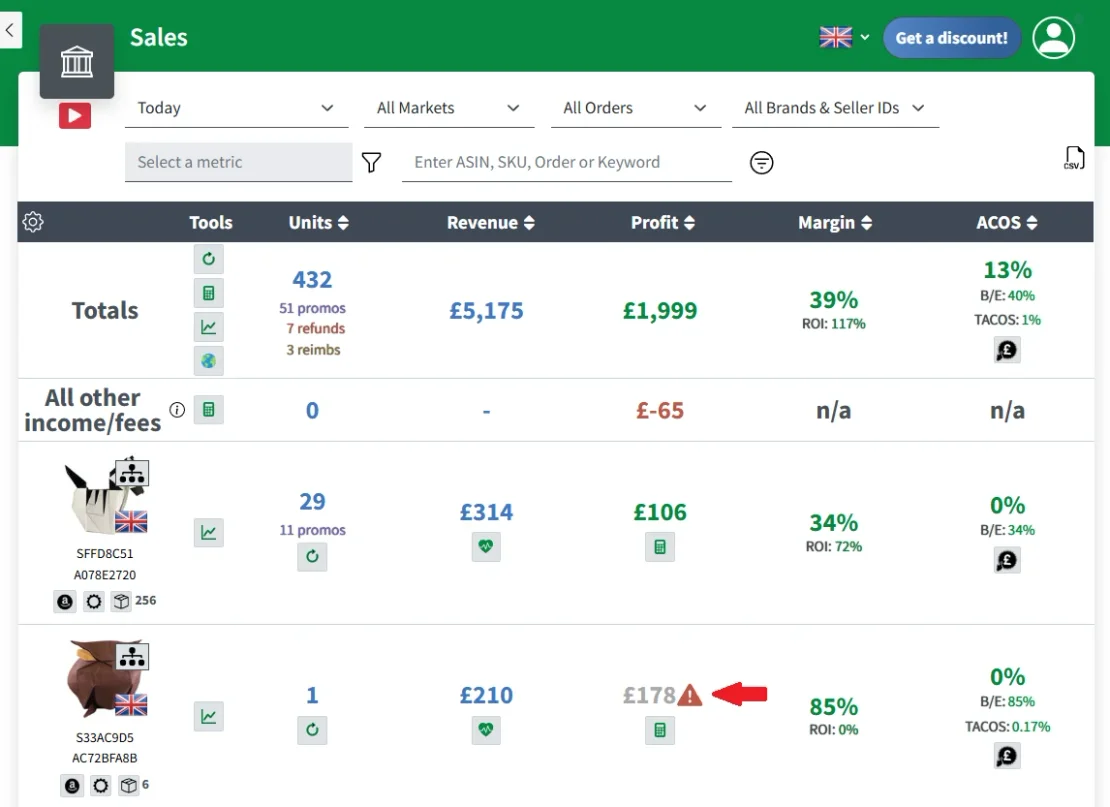
This exclamation icon indicates that you’ve had sales for that ASIN in a particular marketplace but you haven’t entered your COGS (Cost of Goods Sold) and are therefore not getting accurate profit details.
How Do You Enter COGS for an ASIN?
To enter your costs for an ASIN/marketplace from the Sales page, follow these steps:
-
Click the "Costs not configured" icon to get a dropdown of orders by Marketplace.

2. Click the icon again on the Marketplace that you want to set your COGS for.
3. Enter all your costs in the pop-up box and click "Save"
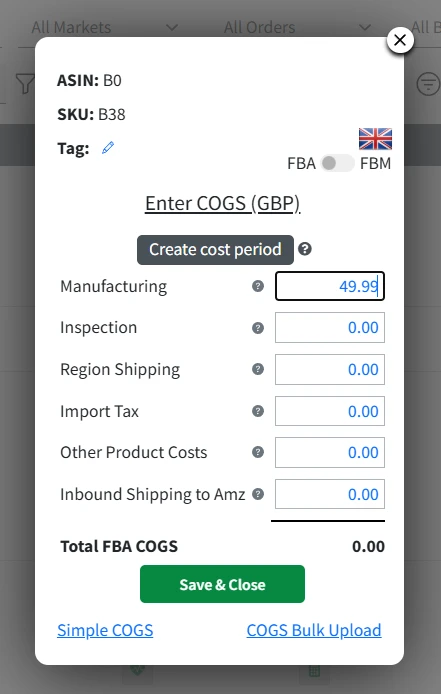
And that’s it - your COGS are now configured for that ASIN/marketplace and your profit figures will update within 10 minutes (usually much faster!).


