

 English


Dec 2, 2022
How to Show your Profit Before/After Adjustments on Shopkeeper
Any Amazon seller who isn’t tracking refunds and adjustments in their total profit and loss simply doesn’t know their real profit - as these figures can have a huge impact on your true bottom line.
And while there’s no way to see these amounts on Amazon Seller Central, on Shopkeeper we break it all down for you.
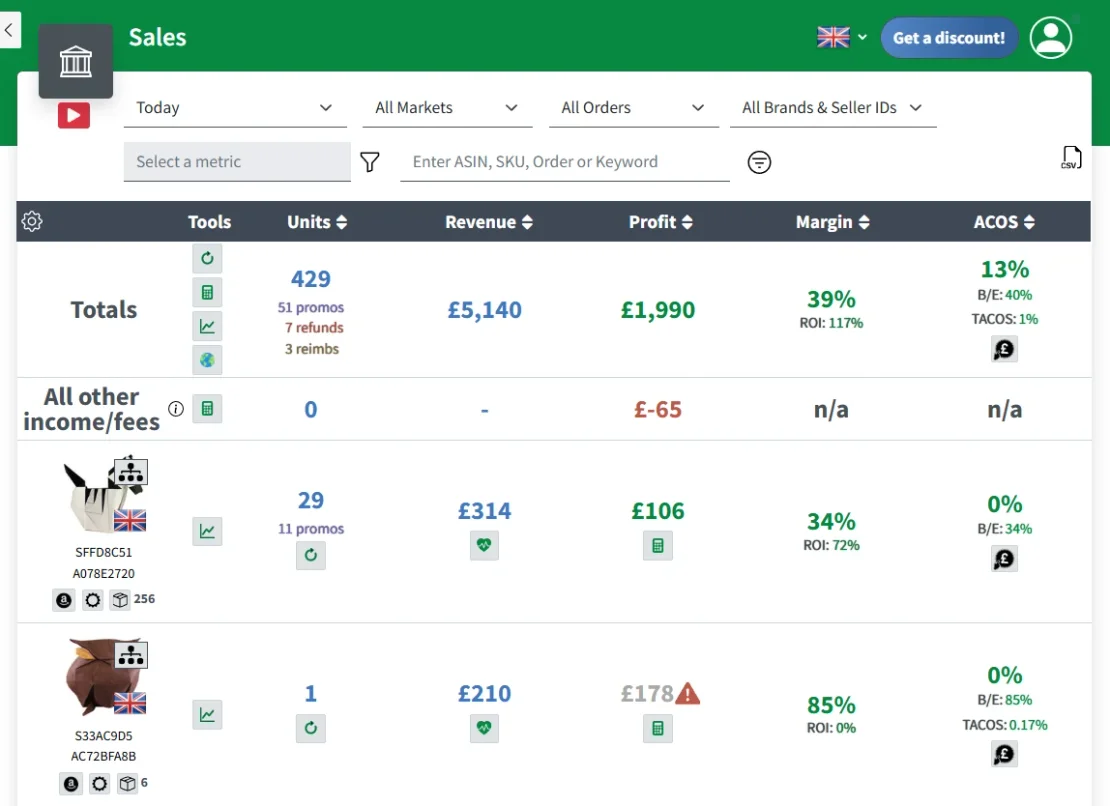
On your Sales page, in the Totals row, you can see the exact details of any refunds and adjustments and how they affected your P/L.
Here’s how:
-
Login at https://shopkeeper.com/app/
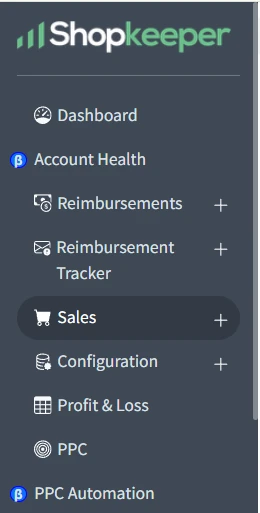
2. Go to your "Sales" page
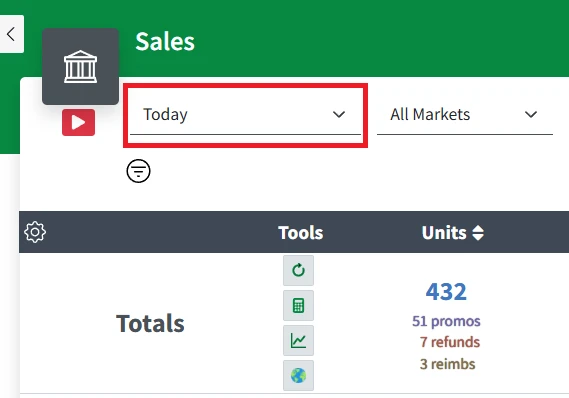
3. And select the timeframe to view
4. Click on the Revenue figures to see the Breakdown.
5. And you'll see your Profit, Profit After Refunds, and Profit After Adjustments
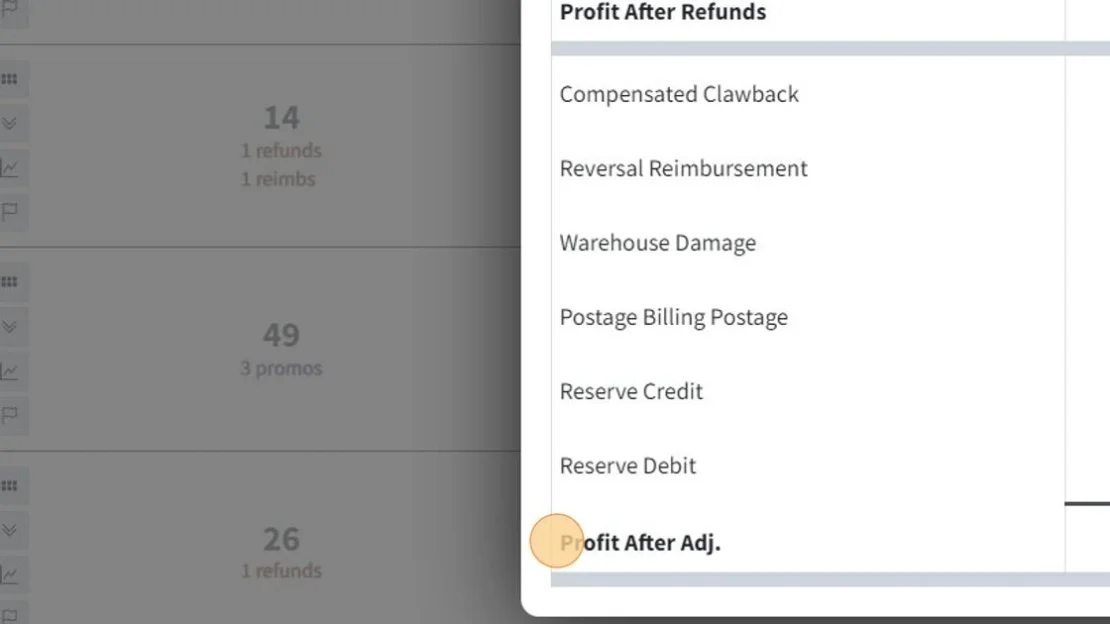
Not only is it all shown clearly in your Sales breakdown, but we also give you the option to choose which Profit method to display as default, using the customization gear in the top left.
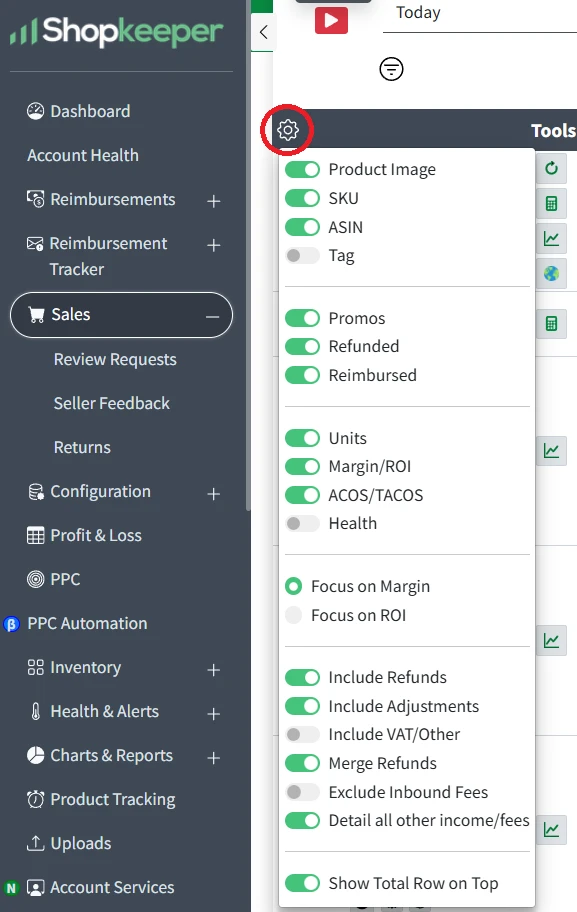
Click here to start customizing your Sales page now.


